
November 17, 2026 · Features
Daycare Checklist Software: Tasks, Signoff, Missed Lists
Daycare checklist software replaces the clipboard by doing three jobs: it puts the right checklist in front of the right person at the right time, it records who completed each task, and it tells a manager when something did not get done. In Childcare Owl, those jobs are handled by Task Lists. You build or import a checklist, schedule it to rooms with a frequency and a due time, staff tap tasks as they finish them, managers sign off where it matters, and a nightly check flags anything that slipped.
If you are still comparing tools, our buyer's guide to task management software for compliance covers what to look for. This post is the product tour: what each screen shows and how the pieces connect.
What you see first: the Task List tab
The Task List tab is the working view. It lists every checklist scheduled for today, with a progress bar, a count of tasks done, the due time, and a status.
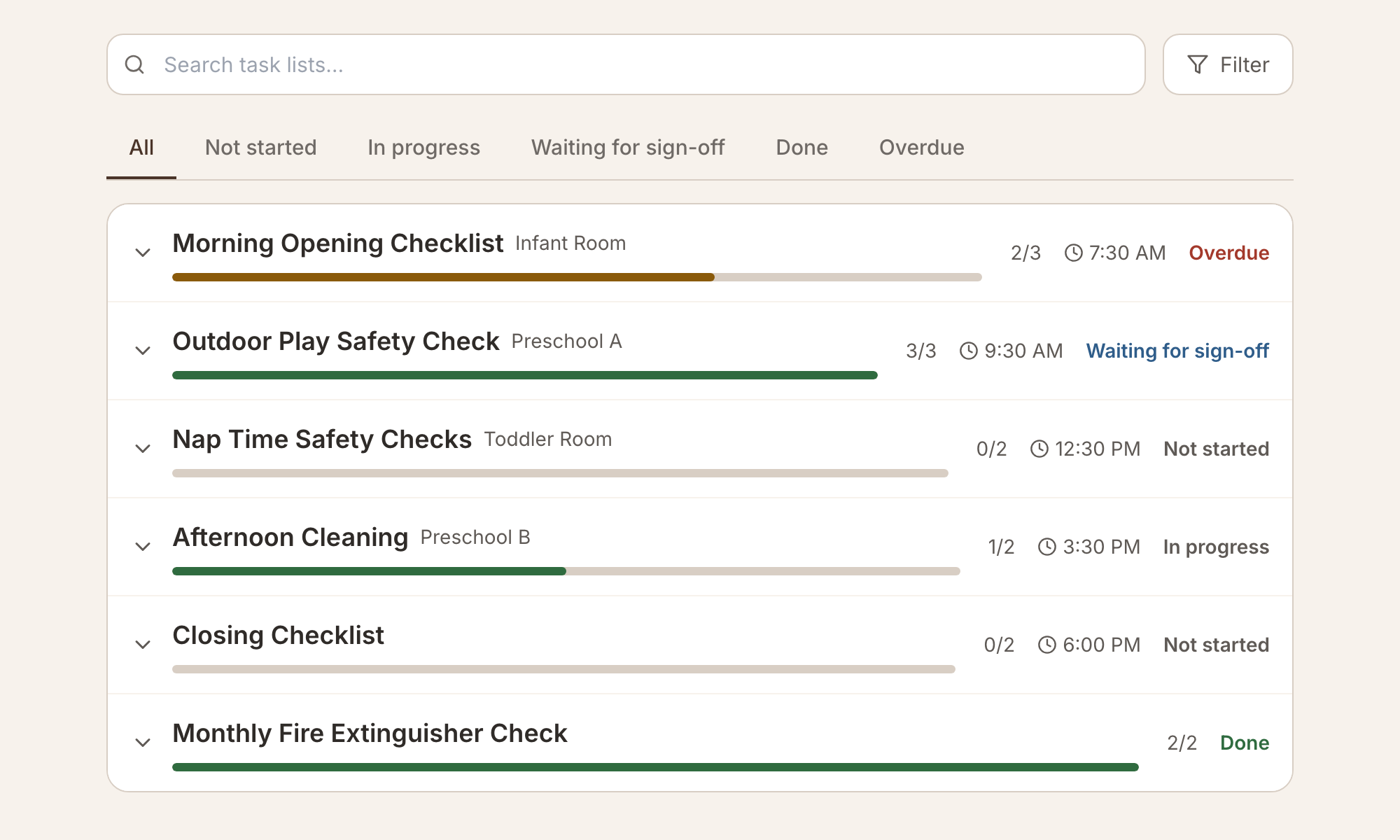 Each row is one scheduled checklist for today. The tabs filter by status.
You can search by name and filter by status: All, Not started, In progress, Waiting for sign-off, Done, and Overdue. A checklist is Overdue when its due time has passed and it is not complete. It is Waiting for sign-off when every task is done but a manager's approval is still missing. The dashboard's overdue counts link straight into the filtered view.
Only checklists that are actually scheduled for today appear here. A checklist you built but never scheduled does not, which is why the next steps matter.
Step 1: Create a checklist (or import one)
Owners and directors build the checklist library from the Settings tab. Click Create New List and fill in a name, an optional description, and the tasks.
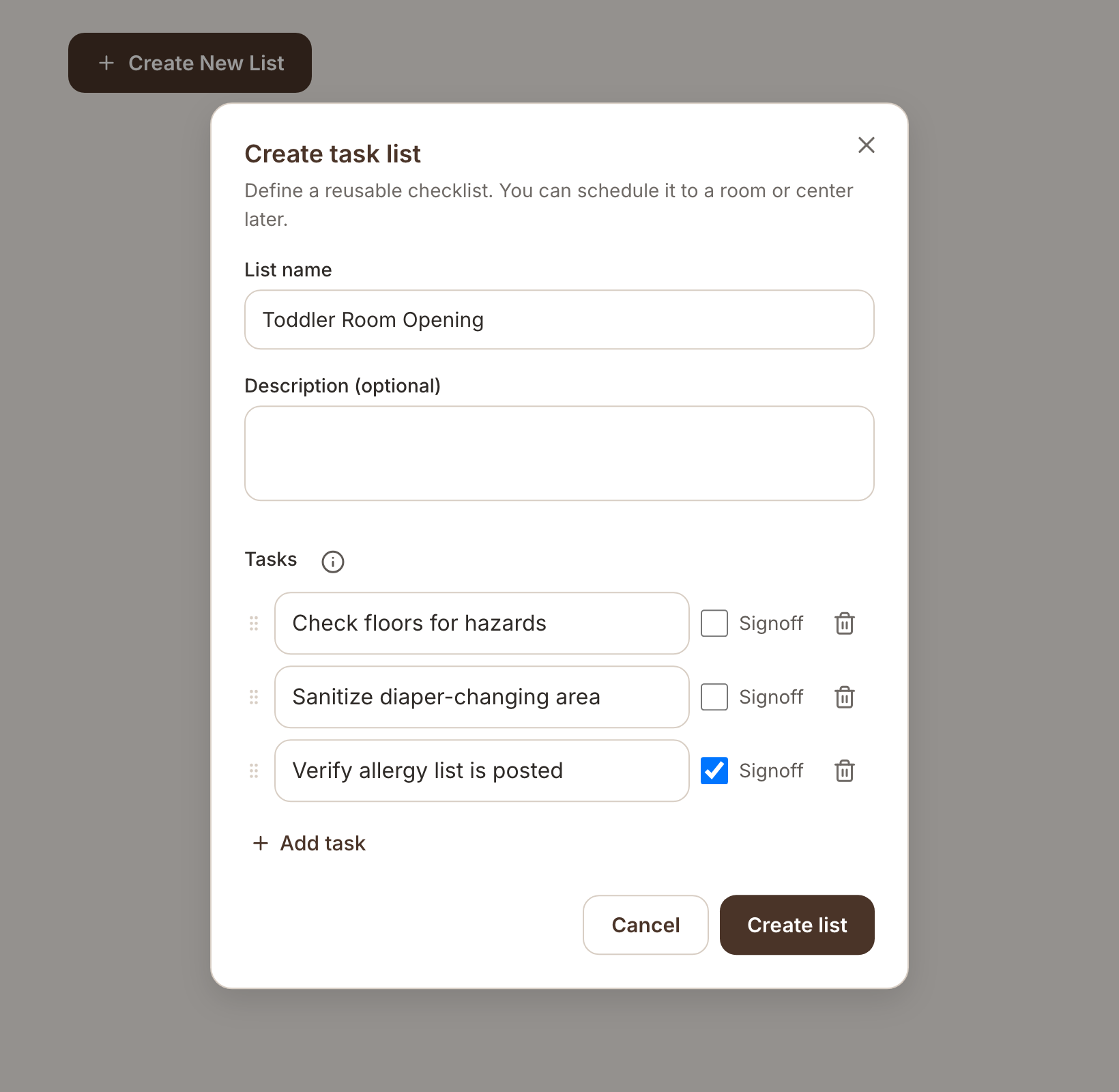 Each task has a Signoff checkbox. Tick it for the tasks a manager should approve individually.
Every task row has a Signoff checkbox. Ticking it flags that one task: staff complete it like any other, but a manager, director, or owner must separately approve it afterward. Use it sparingly, for the tasks where a second look is the point, such as the allergy list or the playground inspection. Our post on what manager signoff actually prevents explains where it earns its keep.
Names are unique. Two active lists in the same center cannot share a name, ignoring capitalization, so you get a clear error instead of a confusing duplicate. If you archive a list, its name becomes available again.
Prefer to start from something that exists? The System Templates tab holds Childcare Owl's built-in library.
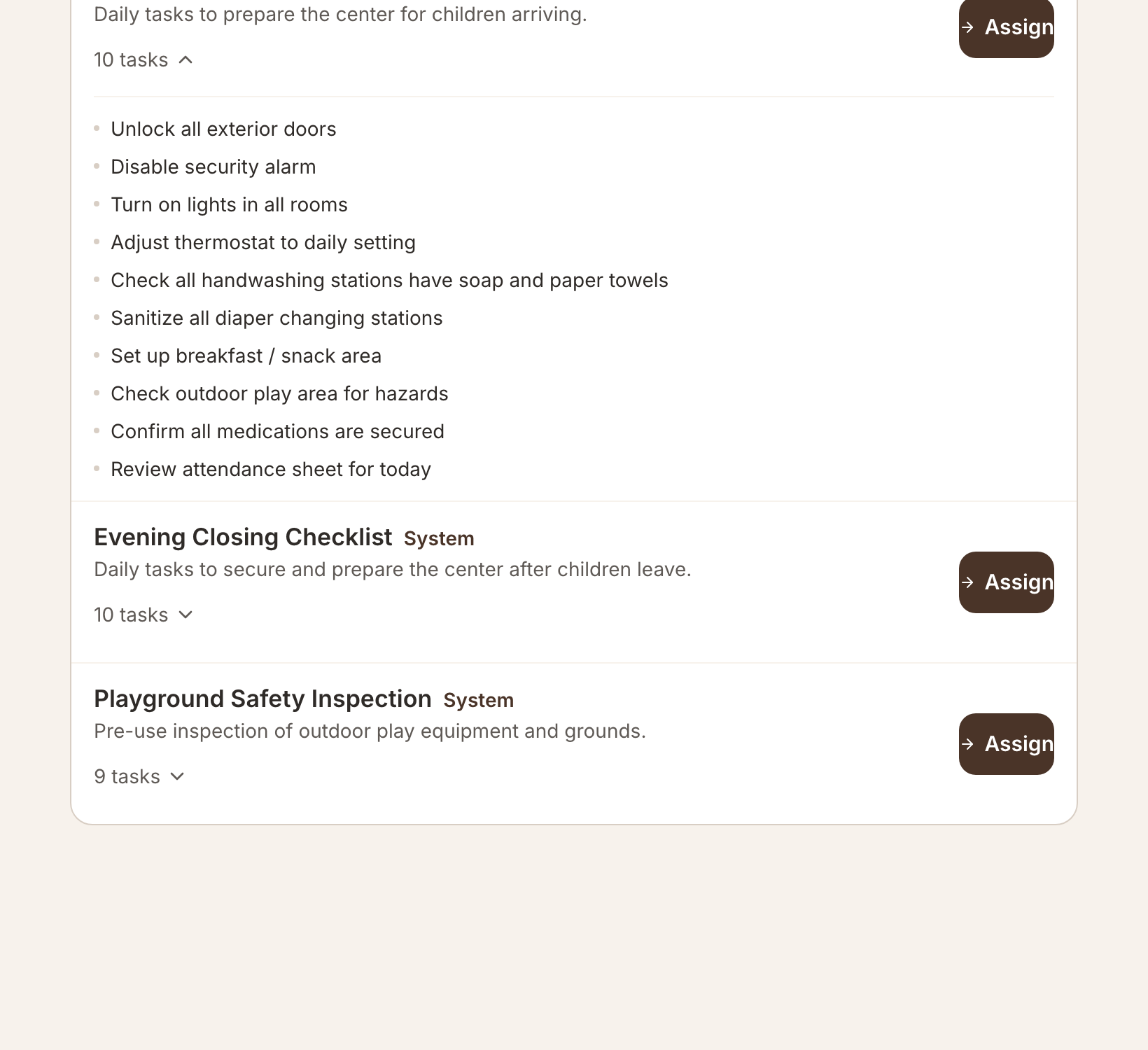 Expand a template to read its tasks, then click Assign to add a copy to your own lists.
Assign makes an independent copy in your Settings tab. It is fully editable: rename it, change the wording, add tasks, remove tasks. Later changes to the system template do not touch your copy. Because list names must be unique, assigning the same template twice is blocked with a message pointing you to the copy you already have. You can schedule one list to as many rooms as you like, so a second copy is rarely needed. Only Childcare Owl adds to the template library; centers do not.
Step 2: Schedule it to rooms
A list does nothing until it is scheduled. After you create one, the schedule dialog opens automatically. You can also open it later with the Schedule button on any list.
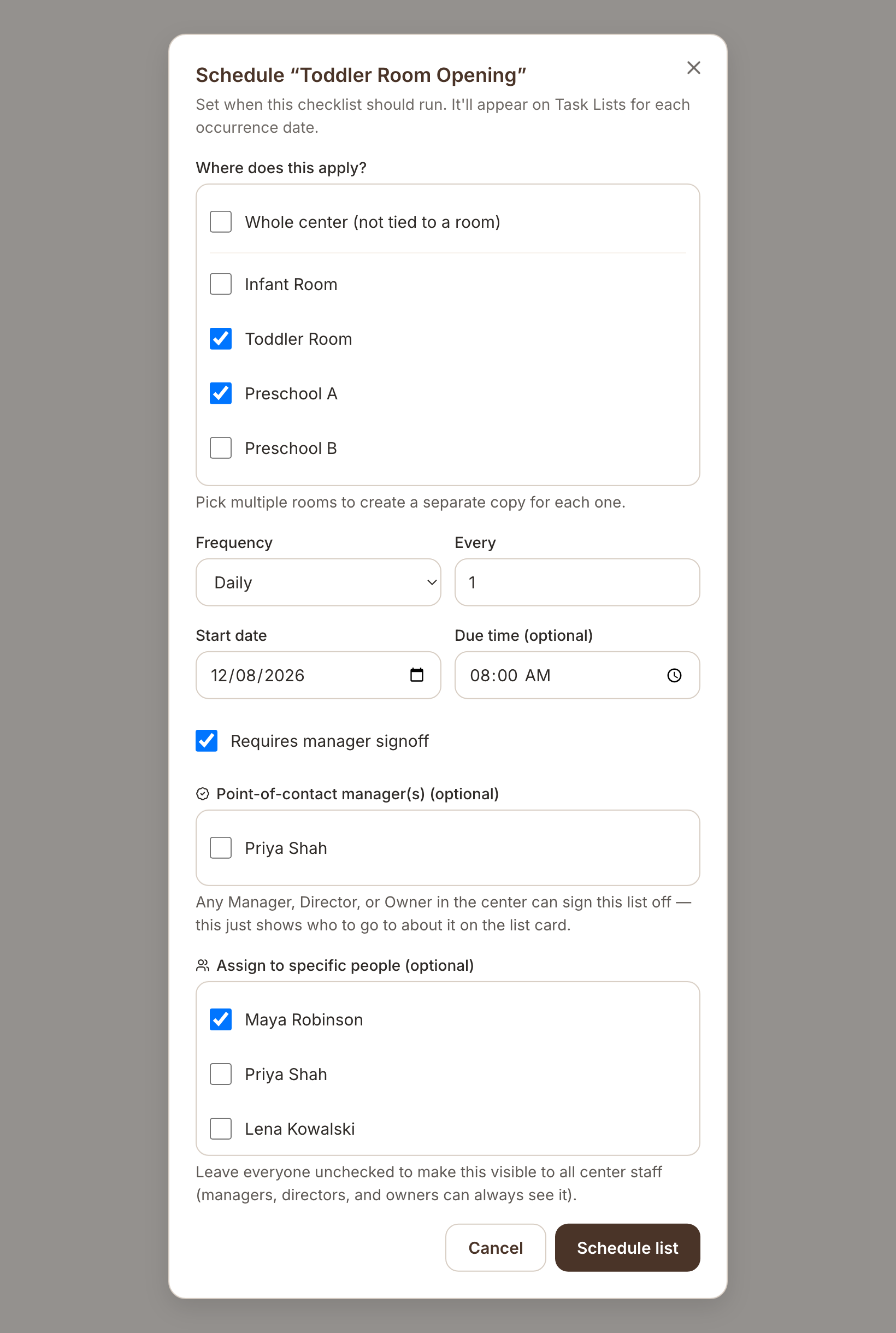 Where, how often, by when, who does it, and who approves it. All in one dialog.
Here is what you choose:
- Where. The whole center, one room, or several. Picking multiple rooms creates a separate copy for each, so each room completes its own.
- Frequency. Daily, weekly, monthly, quarterly, or yearly, plus an "Every" number, so you can run something every two weeks. The periodic ones matter: the tasks that get forgotten are rarely the daily ones. See why periodic childcare tasks get forgotten.
- Start date and due time. The due time is optional. Without one, the list only counts as overdue at the very end of the day.
- Requires manager signoff. A whole-list signoff, separate from the per-task flag. When on, you can name point-of-contact managers. Any manager, director, or owner can still sign off; naming someone just shows who to go to.
- Assign to specific people. Leave everyone unchecked and the list is visible to all staff. Check names and it is assigned to them. Managers, directors, and owners can always see it. Who is assigned also matters for missed-list tracking, covered below. See assigning tasks for more.
The same list can be scheduled again later to another room or time without disturbing the existing schedule.
Step 3: Staff complete tasks on the checklist row
For a teacher, a checklist is a row that expands into its tasks. Tap a task anywhere along its row to mark it complete. There is no separate checkbox to hit.
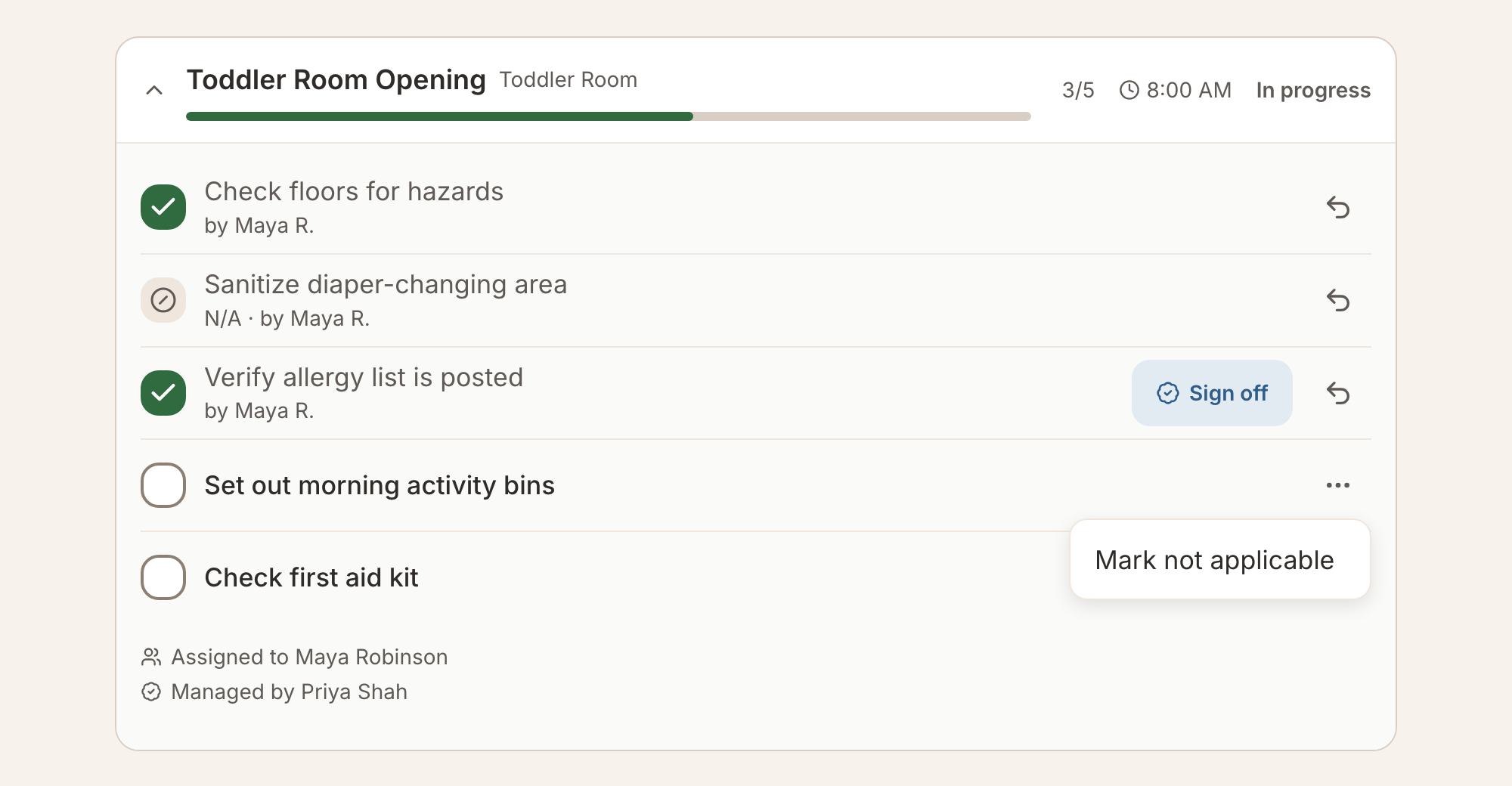 Tap to complete. The three-dot menu holds Mark not applicable. This is the manager's view, which adds Sign off and undo.
The three-dot menu at the end of each unfinished task holds one option, Mark not applicable, for the task that does not apply today, such as sanitizing the changing table in a room with no changing table. It records as N/A, with a name, instead of being left blank. Each finished task shows who did it.
Managers, directors, and owners see two extra controls. A small undo arrow on finished tasks reverses a mistaken tap until the day is signed off. And on a flagged task, a Sign off button approves it. A teacher looking at the same flagged task sees "Waiting for sign-off" instead. The app will not let you approve a task that has not been completed, and the whole-list signoff stays blocked until every flagged task has its own approval.
Step 4: Missed lists are caught for you
Not every checklist gets finished. The question is whether anyone notices. Once a day, shortly after midnight in every U.S. time zone, Childcare Owl sweeps the last three days, never including today, and records the lists that were not finished. It catches two different failures:
- Incomplete. The staff did not finish the tasks. If specific people were assigned, the miss is attributed to them. A list assigned to a room, or to no one in particular, is still recorded as missed but is attributed to no one.
- Sign-off pending. The staff finished everything, but a flagged task was never approved. This one is attributed to the manager named on the list, not the teacher who already did their part.
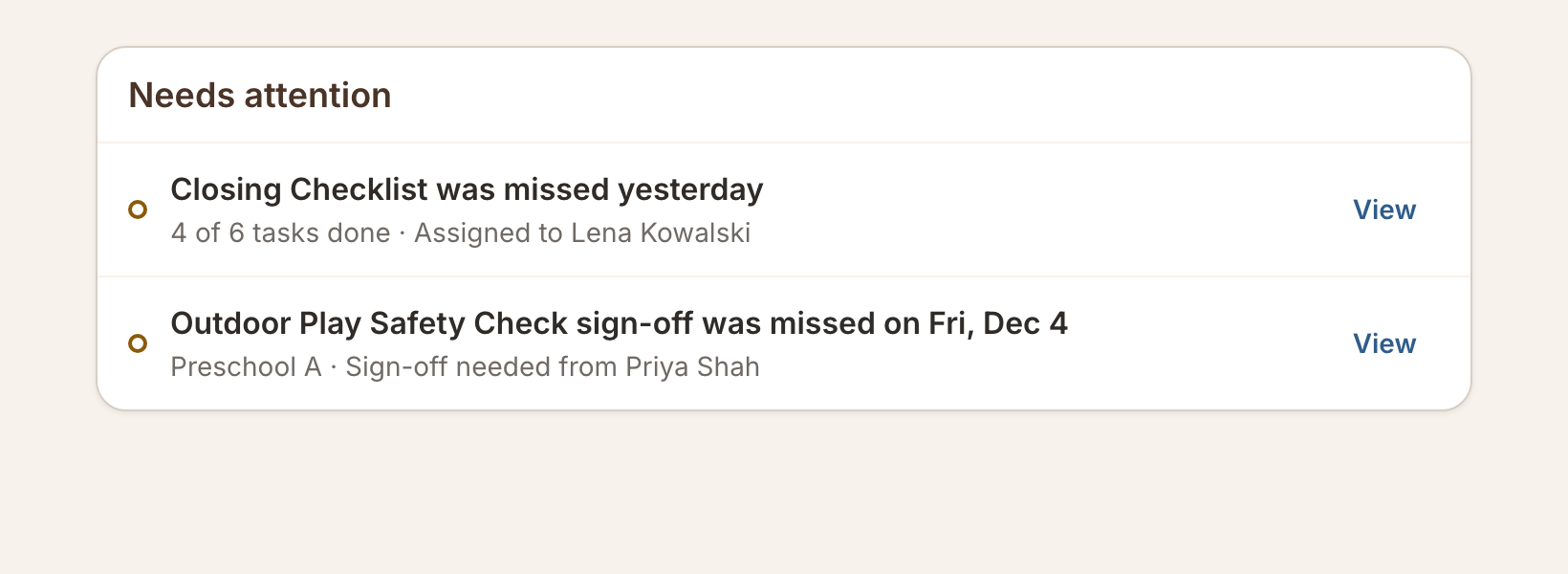 Missed lists name the list, the date, how many tasks were done, and who it was assigned to.
Owners, directors, and managers see misses in the dashboard's Needs attention list. They also appear in Reports: a Task Lists Missed total on the Overview, a Recently Missed Task Lists list, Missed entries in History, and a Task Lists Missed column in the staff performance table. Because the sweep runs nightly, a miss shows up the next morning, not the minute the due time passes. During the day, the Overdue status is the live signal. For more, see understanding missed checklists.
Starter and Pro
Task Lists, templates, scheduling, completion tracking, manager signoff, and Reports are part of both plans. The limits differ.
- Starter ($49 a month): up to 3 rooms and up to 2 custom task lists, with full access to the system templates.
- Pro ($99 a month): unlimited rooms and task lists, plus certification tracking, PDF report exports, Rounds, Training Hours, and onboarding milestones.
Both start with a 14-day free trial. The list limit is checked when you create a list from scratch, and it counts the active lists you already have. See the plans and the Help Center's Starter vs. Pro page.
What this does not do
- It does not track time on task or send alerts to phones the moment something is late. Overdue shows in the app, and misses are detected overnight.
- It does not decide what belongs on your checklists or what your state requires. We're not licensing attorneys, so check with your licensing agency what daily records they expect.
- A completed task is a record of someone tapping it, not proof the work was done well. That gap is exactly what per-task signoff is for.
- Centers cannot add their own system templates. Your own lists are built from scratch or from a copy.
Common questions
What should a daycare opening and closing checklist include? It depends on your center and state. The built-in Morning Opening and Evening Closing templates are a starting point, and you can edit every line. Our free opening and closing checklist shows common items.
Can staff skip a task that does not apply? Yes. Mark not applicable records it as N/A with their name, so it is a decision instead of a blank.
Who can create and schedule checklists? Owners and directors. Managers can complete tasks and sign off. Staff complete the lists they can see.
Does a manager have to approve every checklist? No. Whole-list signoff and per-task signoff are both optional, set per list or per task.
Start your 14-day free trial. No charge until the trial ends.
Related reading:
- Childcare Task Management Software for Compliance: What to Actually Look For (2026)
- Childcare Task Assignment Software: Who's Actually Responsible for What
- What Manager Signoff Actually Prevents
- The Real Cost of a Missed Daycare Checklist
- Help Center: Creating a Task List
- Help Center: Scheduling and Recurrence
- Help Center: Requiring Manager Signoff
- Missed checklist tracking, defined