
November 17, 2026 · Features
Daycare Ratio Log: How Rounds Tracks Staff-to-Child Ratios
A daycare ratio log is a dated record showing that, at specific times, someone counted the children and the staff in each room and checked the result against the required staff-to-child ratio. On paper, that's a clipboard sheet filled in from memory. In Childcare Owl, it's a feature called Rounds: one walkthrough of the building, one submission, every room checked against its own standard automatically, and a permanent record at the end.
This post is a tour of what that looks like: setting a room's ratio, building a round, logging one, and the reporting that comes out of it. If you want the click-by-click steps, the Help Center has them. Here, the point is to show what the feature does and why it's built the way it is.
Why a paper ratio log falls short
Most centers know their ratios. The trouble is proving them, consistently, over time.
- The math happens in someone's head. Counting children and staff is easy. Deciding whether 11 children and 2 teachers is fine depends on the room's age group, and some rooms have two different rules that can both apply.
- The sheet is easy to lose and hard to search. A binder of daily sheets answers "what happened last Tuesday?" slowly, if at all.
- Nobody sees the pattern. A single out-of-ratio moment gets noticed, or doesn't. The fact that the infant room fills up every day at 8:15 doesn't show up anywhere.
A licensor reviewing your records generally wants to see checks across a stretch of time, not one good day. How far back they look and how long you must keep records varies by state, so ask your licensing agency what yours are. Our post on what a licensing inspector actually asks to see covers the general idea.
Step 1: Set each room's ratio standard
Before any round can be checked, each room needs to know its own numbers. That lives on the Rooms page, next to the room itself, and it's available to owners and directors.
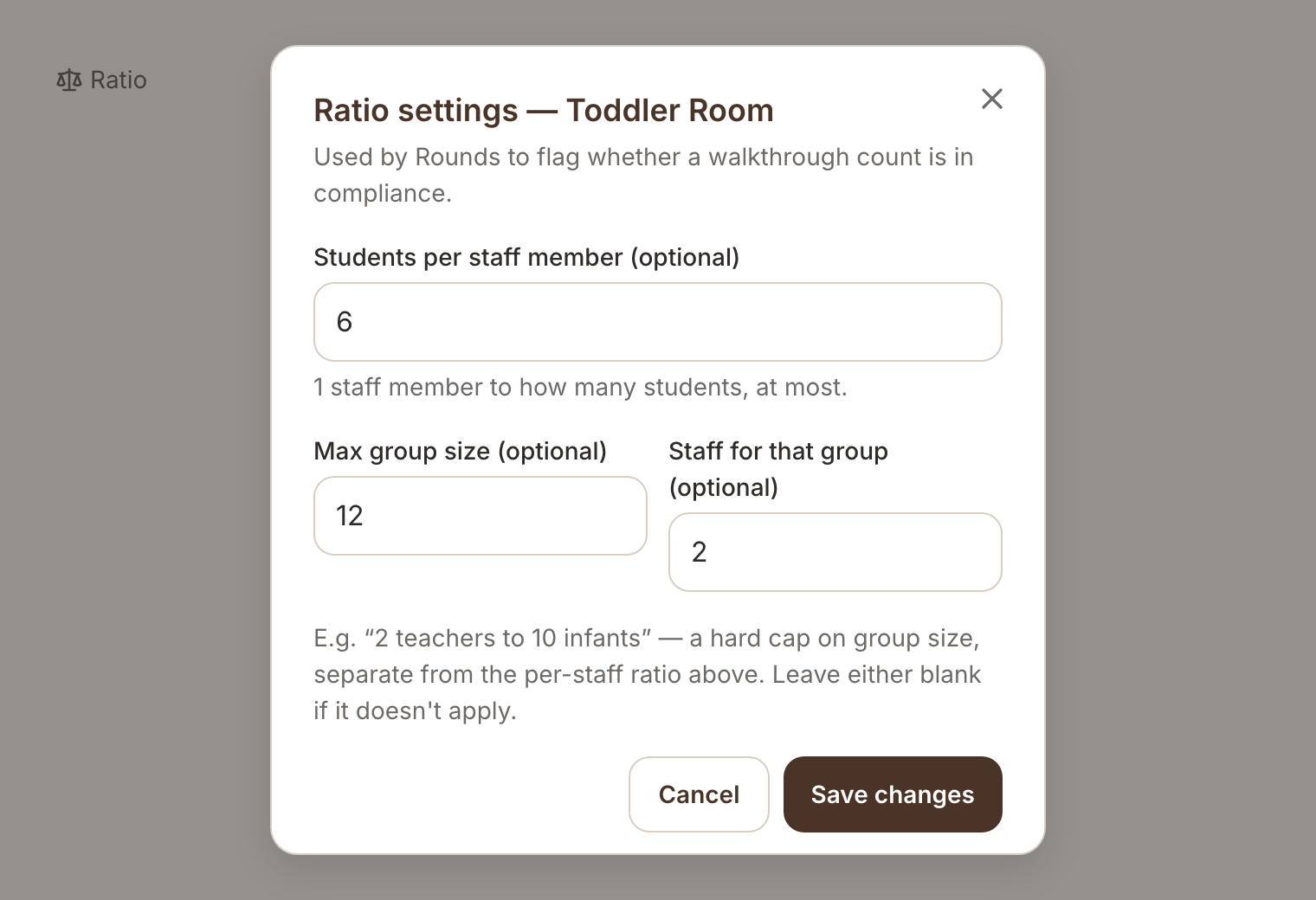 Each room carries its own ratio standard, set once on the Rooms page.
A room can carry two standards:
- Students per staff member. One staff member to how many children, at most. For example, 4 for an infant room.
- Max group size, and the staff that group needs. A hard cap on group size paired with a minimum staff count, such as 2 teachers to 10 children.
The two are alternatives, not a stacked requirement. A room is in ratio if it meets either one. Treating them as a combined rule would make some perfectly legitimate staffing arrangements impossible to pass, so Rounds doesn't.
Childcare Owl doesn't ship with built-in ratio numbers, because no single number is right everywhere. Ratios vary by state, and plenty of centers hold themselves to a stricter standard than the legal minimum. A room with no standard configured shows as "No ratio set" instead of a false pass or fail. Whether a check happened and whether it passed are kept as two separate facts.
Step 2: Build a round
A round is a reusable definition: what you're checking, where, and how often. You set these up on the Round Settings tab.
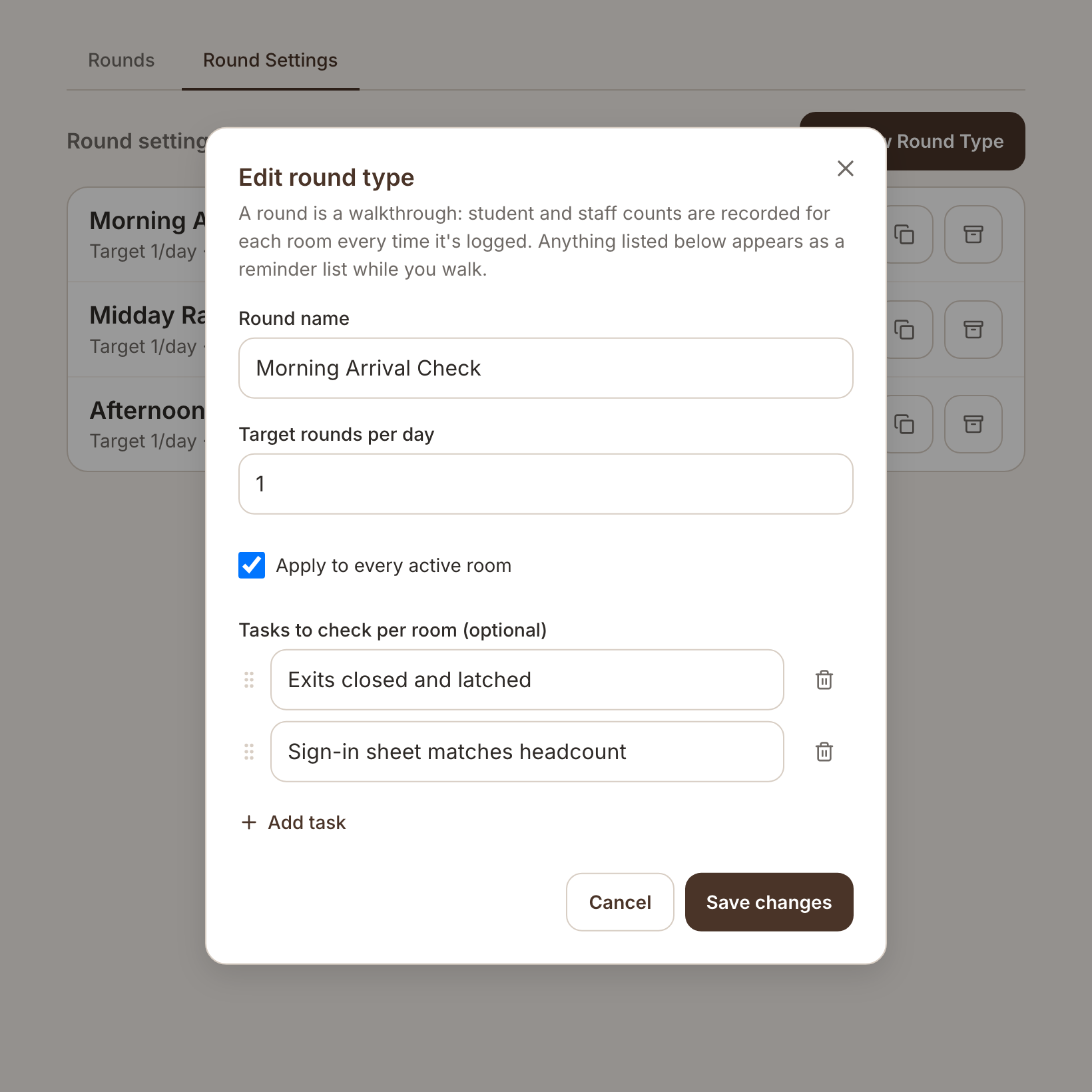 A round has a name, a daily target, the rooms it covers, and optional tasks to check in each room.
- Round name. Something like "Morning Arrival Check" or "Hourly Ratio Check."
- Target rounds per day. Your goal for how many times this round gets logged. It's a target for reporting, not a deadline.
- Which rooms. Every room, or a chosen set.
- Things to keep an eye out for (optional). A short reminder list that rides along with the count, like "Exits closed and latched" or "Sign-in sheet matches headcount." The setup form calls these "Tasks to check per room." On the log screen they appear as a "Keep an eye out for" panel above the counts, as prompts while you walk. They're reminders, not checkboxes.
You can create several rounds with their own targets, for example a morning arrival check, a midday check, and an afternoon pickup check. Each one is a single walkthrough across the rooms you picked, not a separate form per room.
Step 3: Log a round
When it's time, go to the Rounds tab, tap New Round, and pick which round you're walking through right now. (Each round also has a Log round button in Round Settings.) If the round has reminders, they sit at the top of the screen. Below them, one table lists every room the round covers. For each room you enter the number of students, the number of staff, and an optional note, and there's a space for a note on the round as a whole.
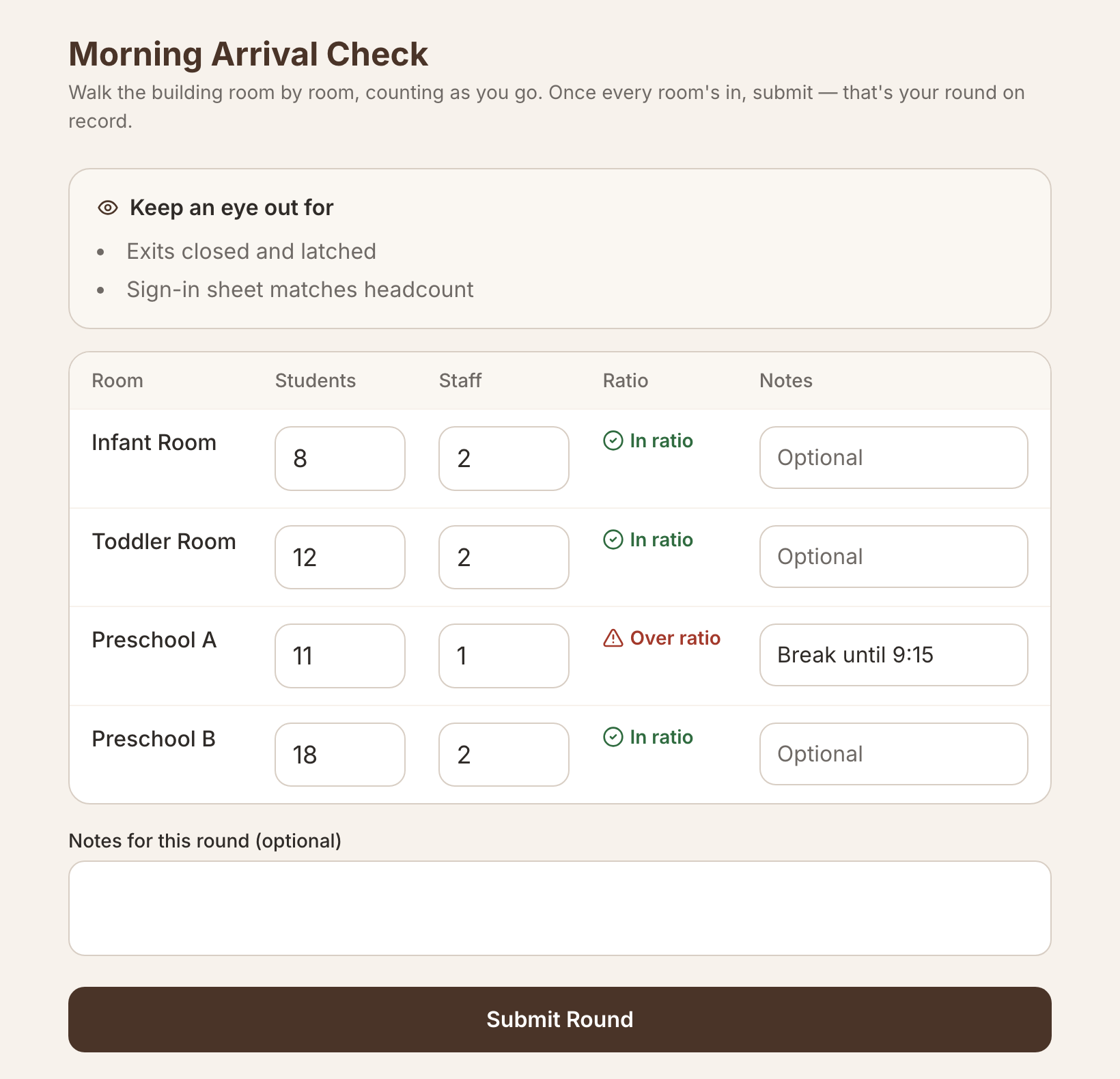 The ratio badge updates as you type, so a problem is visible before you submit.
As you type, a badge beside each room shows In ratio, Over ratio, or No ratio set. That preview is for you, in the moment. When you submit, the server recalculates every room independently, so what gets recorded doesn't depend on what the screen showed.
Submitting creates one permanent record for the whole walkthrough. A submitted round can't be edited or deleted, the same as task completions and manager signoffs. If you entered a wrong number, log a new round with a note explaining it. The history keeps both, and that's what makes the log believable later.
Owners, directors, and managers can log rounds.
What happens when a room is out of ratio
If a submitted round shows a room out of ratio, it appears on the dashboard's Needs attention list right away.
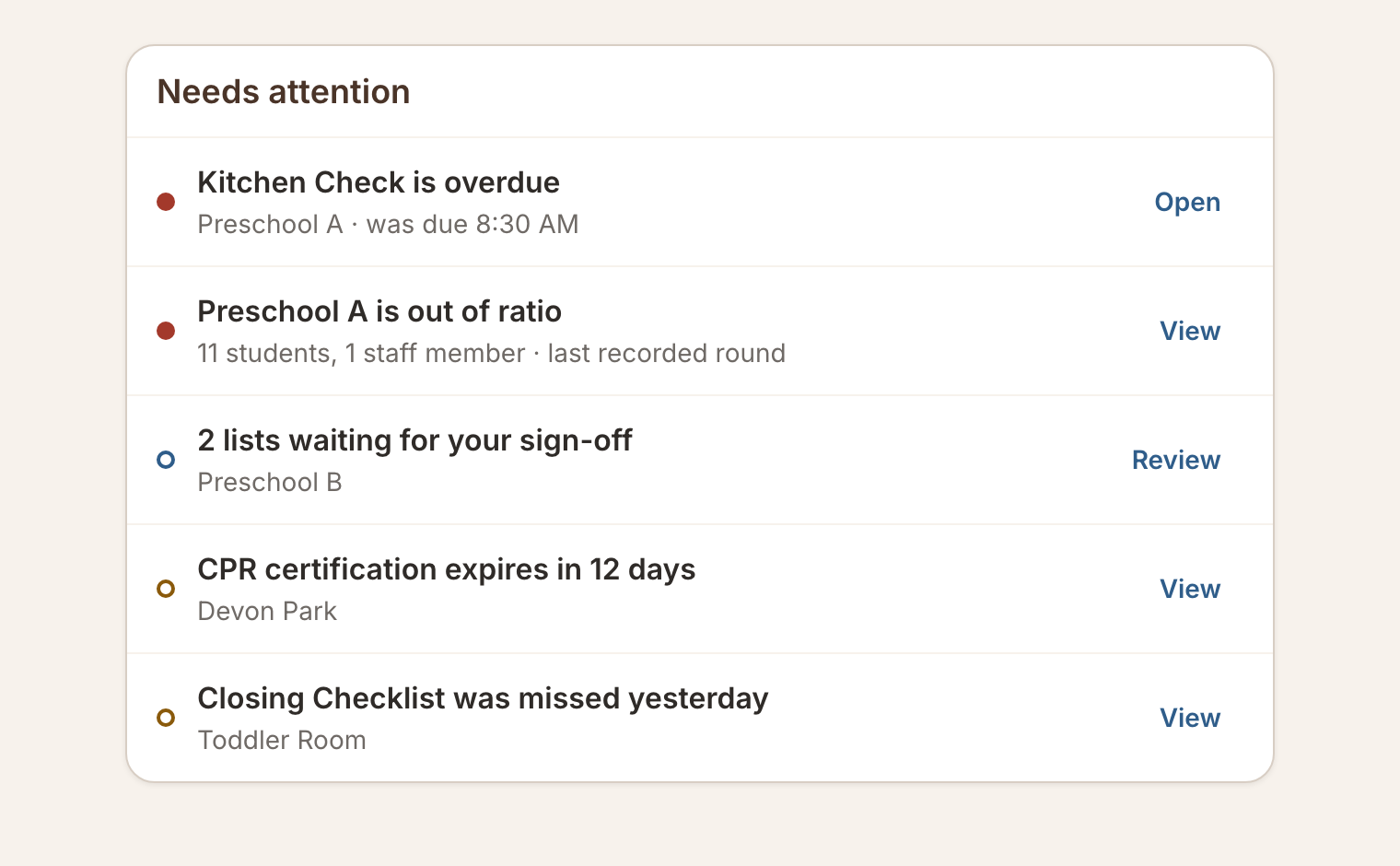 An out-of-ratio room shows the counts from its last recorded round.
The alert shows the room's last recorded counts, for example "11 students, 1 staff member," and links to the Rounds page. It's based on the room's most recent round, so it clears once a later round shows the room back in ratio. It reflects what was recorded, not a live feed of the room, which is why the next section matters.
From one-off checks to a record you can use
Each round lands in your history. The list shows total students and staff for the walkthrough and a single In ratio or Out of ratio badge.
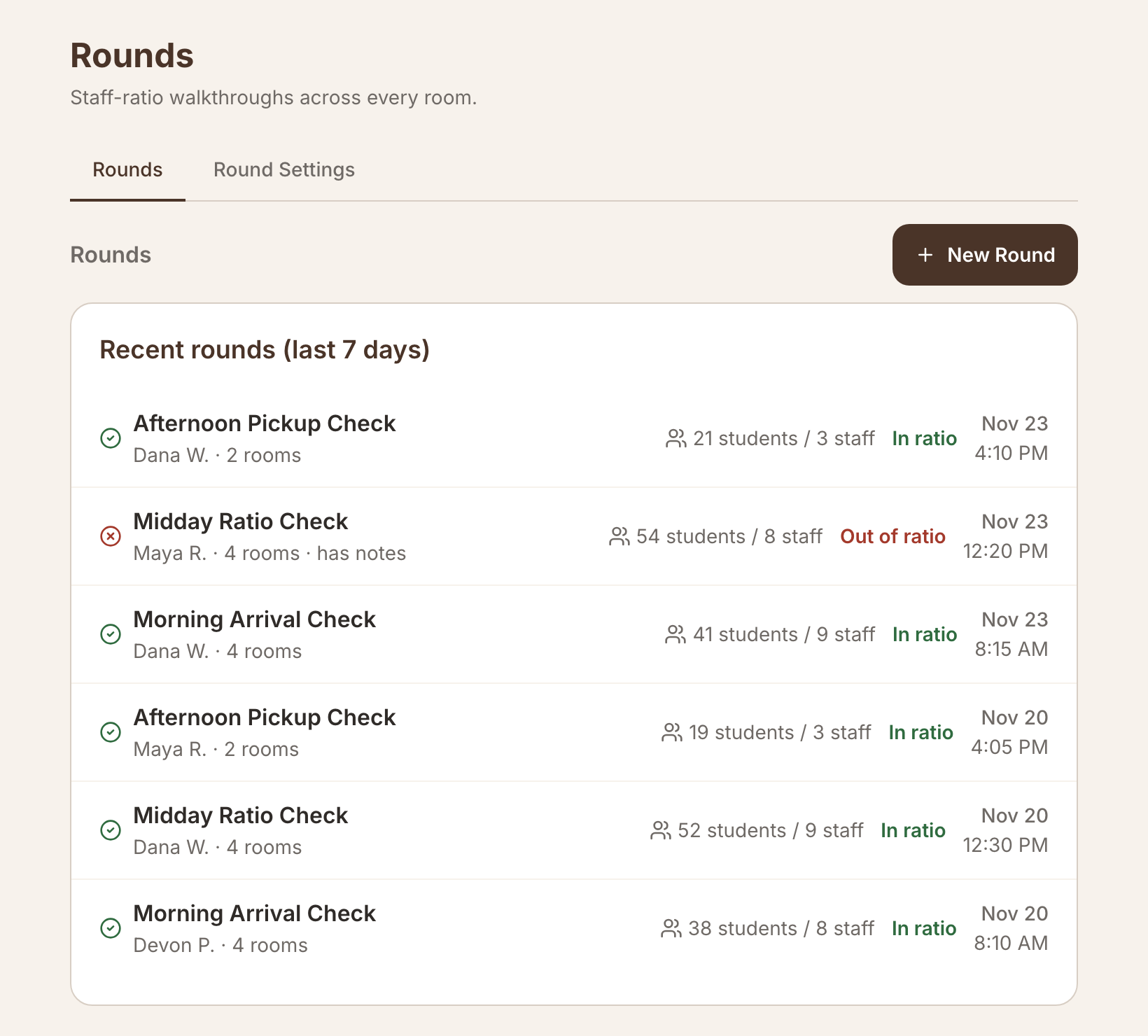 The Rounds tab lists the last seven days of rounds, newest first. Older rounds stay in your records.
Open any round to see the per-room breakdown: each room's student and staff counts and any notes. That detail is what you'd pull up if a licensor asks about a specific day.
The bigger payoff is the Rounds tab in Reports:
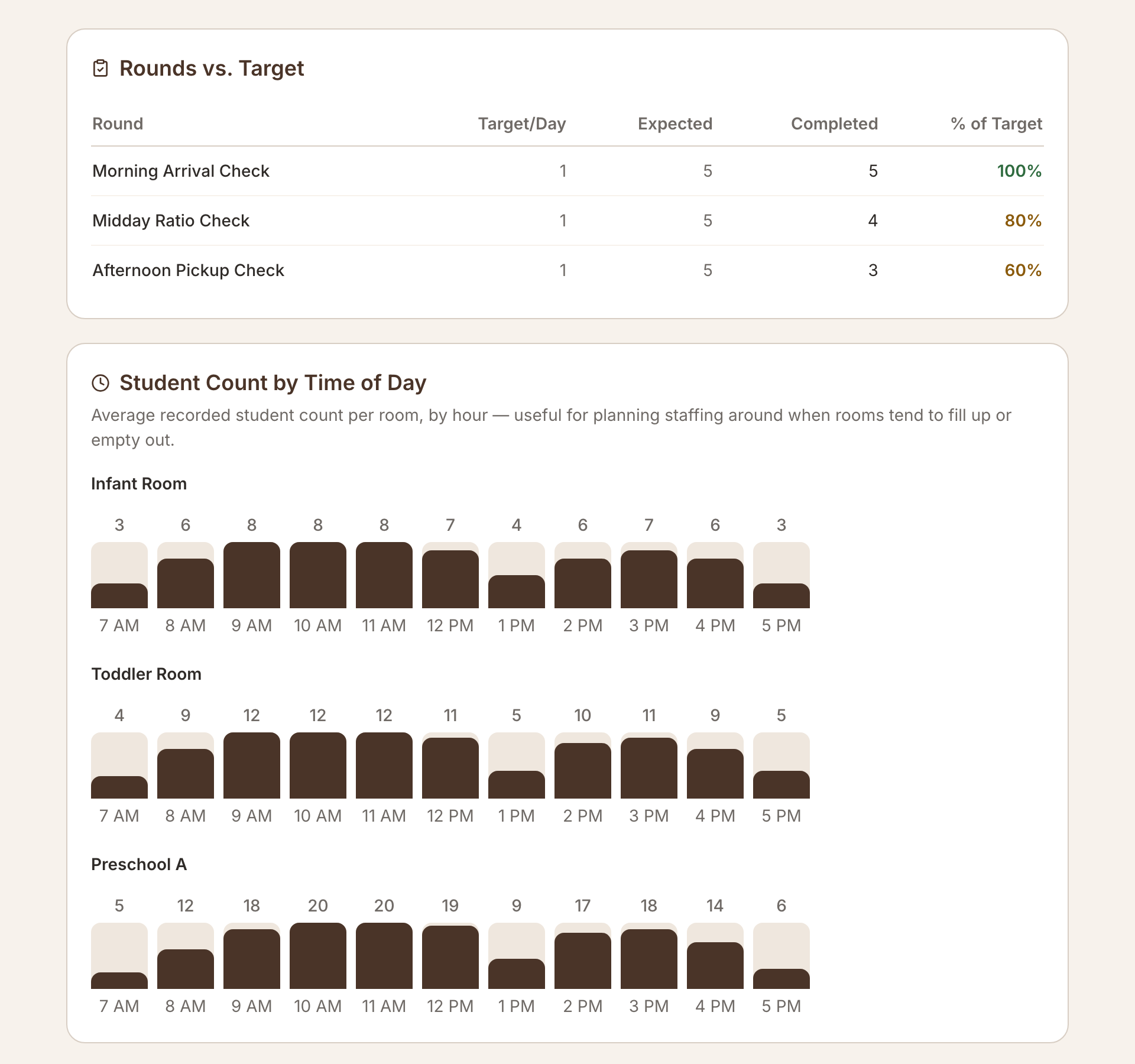 Rounds completed against target, and average student counts by hour of day for each room.
- Rounds vs. target. For each round type: the daily target, how many rounds were expected over the date range, how many were completed, and the percentage of target. It answers "are we actually doing these checks as often as we said we would?"
- Student count by time of day. The average recorded student count per room, by hour. It shows when each room tends to fill up and empty out, which helps when you're planning staffing and break coverage.
One honest limit: the hourly view reflects the times rounds were logged. Rounds records room totals, not individual children, so treat it as a planning guide rather than an exact attendance timeline.
Rounds and attendance-based ratio tools
If your center already uses an attendance or check-in system, Rounds doesn't replace it. Attendance tools can show counts as children sign in and out. Rounds is a different thing: a person walking the building, counting, and recording the result at deliberate points in the day. That produces a record of intentional checks, with a number, a time, and a name attached.
Common questions
How often should we log a round? It depends on your state. Some licensing agencies specify intervals, and others only require that records are available when asked. Many centers pick natural checkpoints, such as arrival, midday, after nap, and pickup, and set the round's daily target to match. Ask your licensing agency what applies to you.
Does a digital ratio log satisfy my state's licensing rules? We can't answer that for your state, and we're not licensing attorneys. What we can say is that each round is timestamped, broken out by room, attributed to the person who logged it, and permanent. Check with your licensing representative about electronic records before you retire any paper process.
Who can set up and log rounds? Owners, directors, and managers can log rounds. Setting a room's ratio standard is limited to owners and directors.
Is Rounds on every plan? Rounds is part of the Pro plan. See pricing for the details.
Start your 14-day free trial. No charge until the trial ends.
Related reading:
- Daycare Staff-to-Child Ratios, Explained: The Two Standards Most Centers Mix Up
- Childcare Ratios by State: the full reference guide
- Help Center: Logging a Round
- Help Center: Understanding Round Compliance Status
- Help Center: Setting Your Room's Ratio Standard
- Childcare Rounds (ratio walkthrough), defined
- What a Daycare Licensing Inspector Actually Asks to See