
November 17, 2026 · Features
Daycare Staff Certification Tracker: See Every Expiration
A daycare staff certification tracker keeps one record per person per credential, such as CPR or First Aid, with an expiration date, and tells you which ones are missing, expiring, or expired before an inspector or an incident does. In Childcare Owl, that is the Certifications page: you decide which certifications are required, enter each person's dates, and the app computes a status for every staff member and every certification, including the ones nobody has filled in yet.
This post is a tour of that page and where its results show up. If you want to know what to track and why, our guide to CPR and First Aid certifications covers it. Here, we show the tool doing the tracking.
Why a missing record should look like a problem
Most paper and spreadsheet systems share one flaw: they only show what someone typed in. A new hire who never turned in a card does not appear on the sheet at all, so nothing looks wrong. The first time anyone notices is when a licensor asks for the file.
The Certifications page works the other way around. It builds one row for every active staff member and every certification type, whether or not anything has been recorded. A required certification with nothing on file shows as Missing, not as a blank. What your state requires, who must hold it, and how long records must be kept all vary, so check with your licensing agency. We're not licensing attorneys.
Step 1: Decide what is required
Start on the Certification Settings tab. This is where you define the certification types your center tracks.
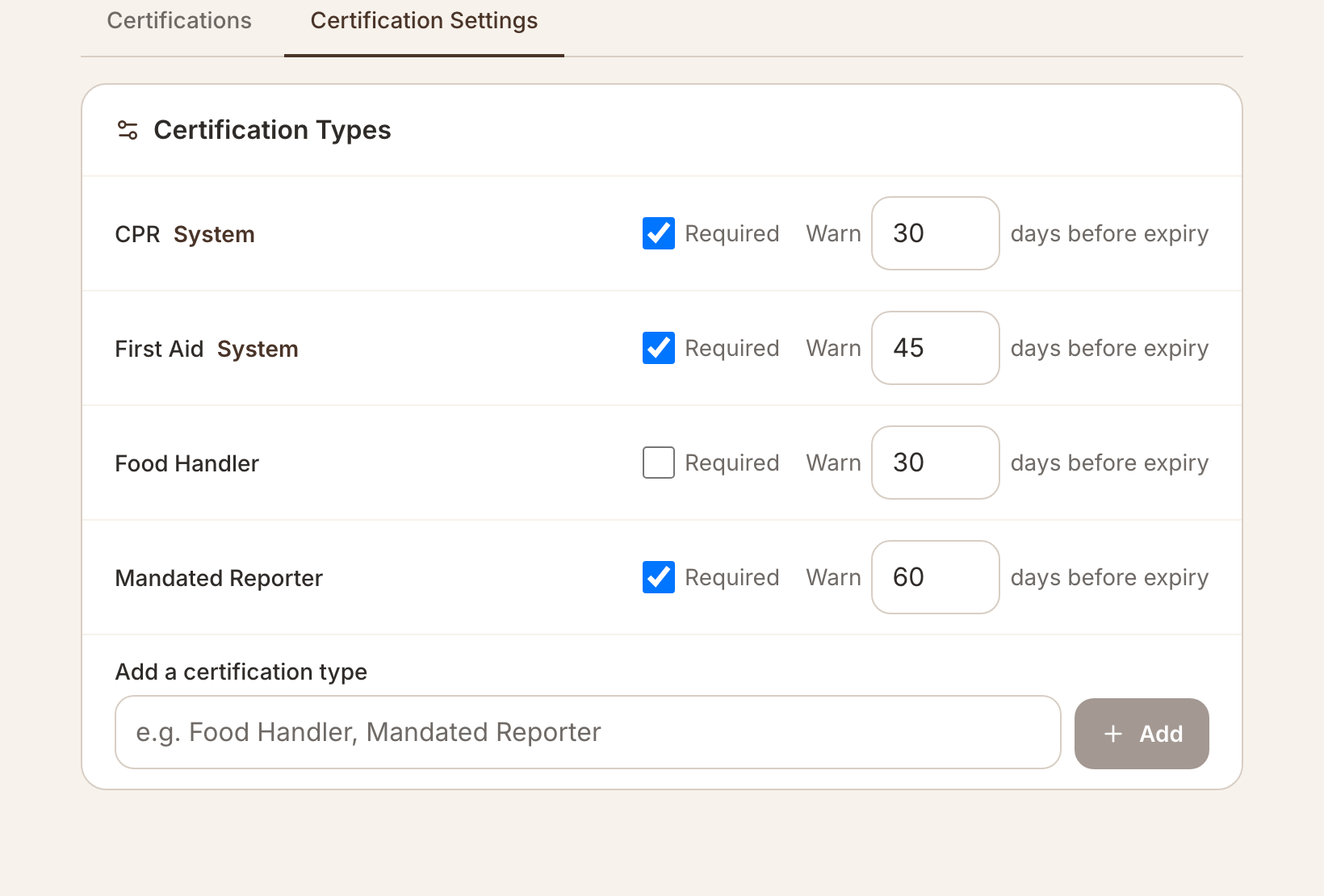 Each certification type has its own Required checkbox and its own warning window.
CPR and First Aid come built in and are marked System. You can add your own, such as Food Handler or Mandated Reporter, with the "Add a certification type" field at the bottom. For each type you set two things:
- Required. Tick it and the type applies to every active staff member. Leave it unticked and the type is tracked but optional.
- Warn days before expiry. A number from 1 to 365. If you never change it, a type warns 30 days out. In the screenshot, First Aid warns 45 days ahead and Mandated Reporter 60, because those take longer to schedule.
These settings are yours alone. Another center's required list never affects yours. Only owners and directors see the Certification Settings tab, since deciding what is required for everyone is a policy call.
Step 2: Fill in each person's status
The Certifications tab is the day-to-day view. Each staff member gets a block, and each certification gets a row with a colored status.
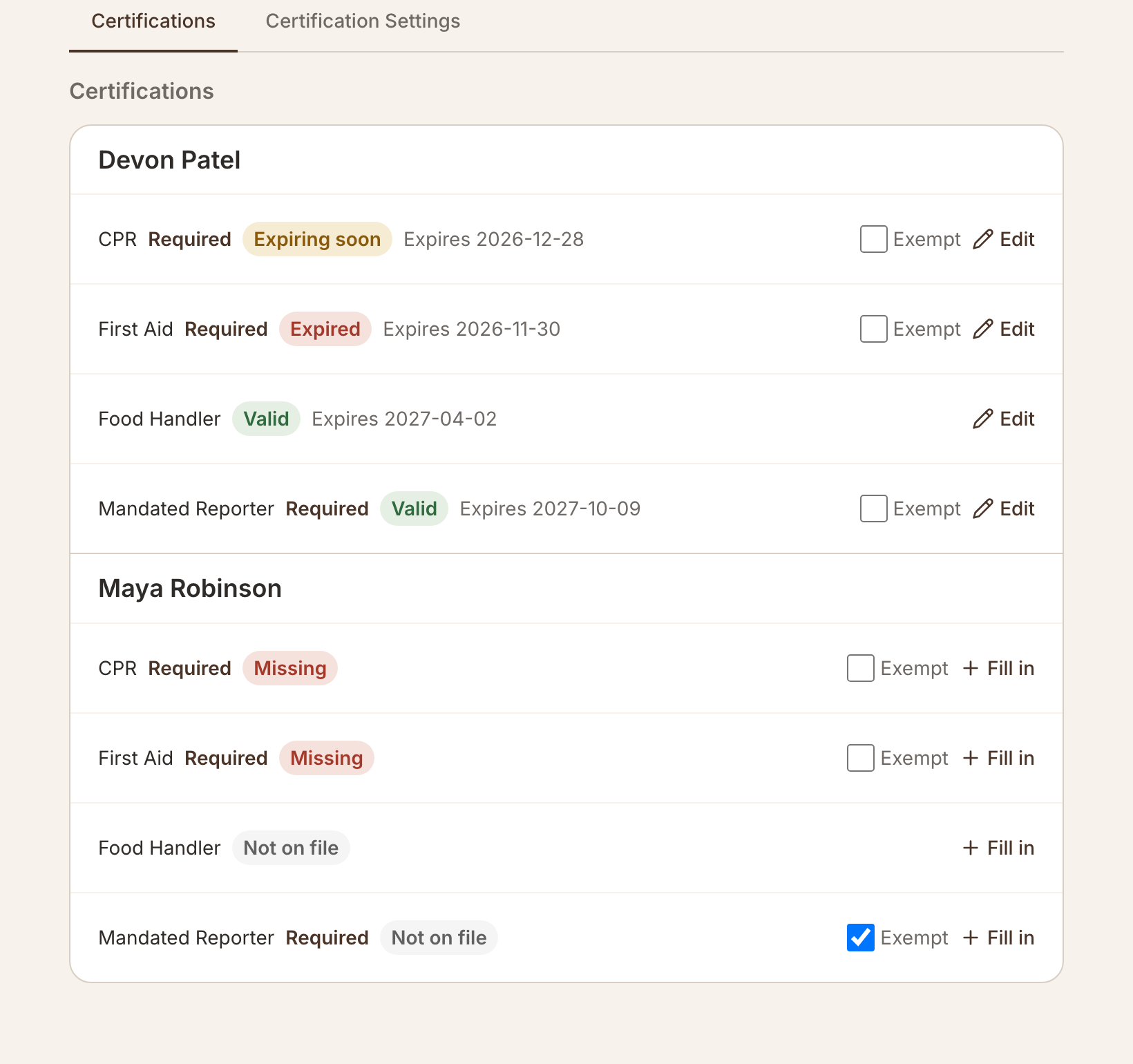 One row per person per certification. Missing means required and nothing on file.
The statuses mean:
- Valid. On file and outside the warning window.
- Expiring soon. On file, but the expiration falls inside that type's warning window.
- Expired. The date has passed.
- Missing. Required, and nothing is on file.
- Not on file. Optional, and nothing recorded. This is not treated as a problem.
Owners, directors, and managers can use this tab. That is deliberately wider than the settings tab, so a manager can keep records current without being able to change what is required.
Step 3: Record a certification
Click Fill in on a row, or Edit if a record exists, and a small dialog opens.
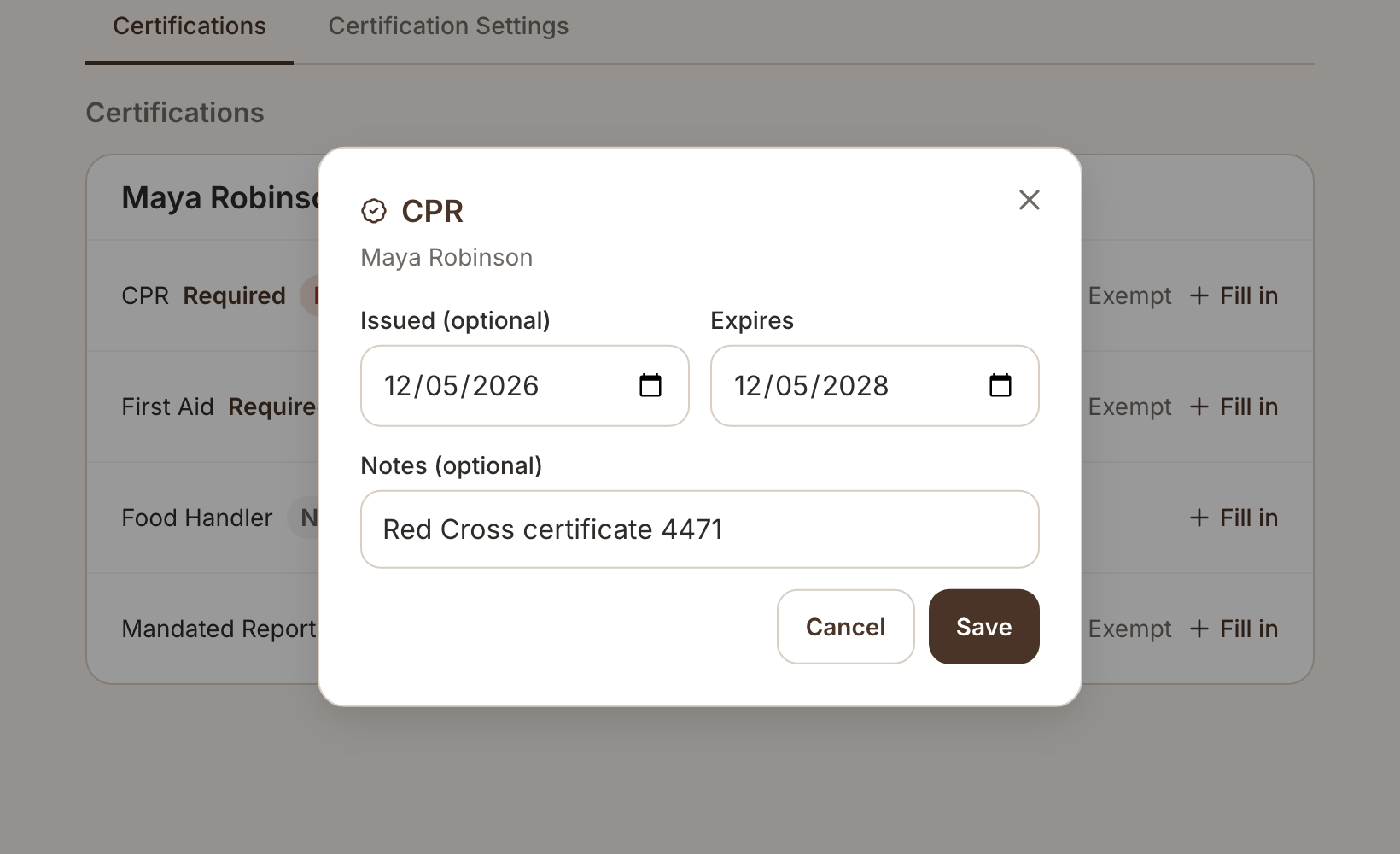 Expiration is the only required field. Issued date and notes are optional.
Enter the expiration date, and optionally the issue date and a note such as a certificate number or the issuing organization. Save, and the row's status updates. When someone renews, Edit the row and enter the new dates.
Two details are worth knowing. First, these changes ask for re-verification: the first time you save, the app asks you to re-enter your account password. Once confirmed, you can keep editing for 15 minutes. It is aimed at shared tablets, so a quick-switched session cannot quietly change compliance records. Second, the Certifications page is a Pro plan feature. On Starter, owners and managers see an upgrade prompt instead of the table.
Step 4: Waive a requirement for one person
Required does not always mean required for everyone. A part-time custodian may not need a Mandated Reporter certification. Next to each required row is an Exempt checkbox. Tick it and that person no longer counts as missing that certification, without touching the requirement for anyone else.
The exemption is per person, not per job title. The app has four permission roles and no job-title field, so a person-by-person waiver is the only fair granularity. Use it for real exceptions. An exemption that exists to make a red row go away defeats the point of the list.
One limit to know: an exemption stops a missing record from counting against you, but if an exempt person does have a record on file, its real status still shows.
Where the results show up
You should not have to open the Certifications page to find out something is wrong. The same computed status appears in two other places.
The dashboard. For owners, directors, and managers on the Pro plan, certification problems appear in the Needs attention list, ranked with the rest of the day's issues.
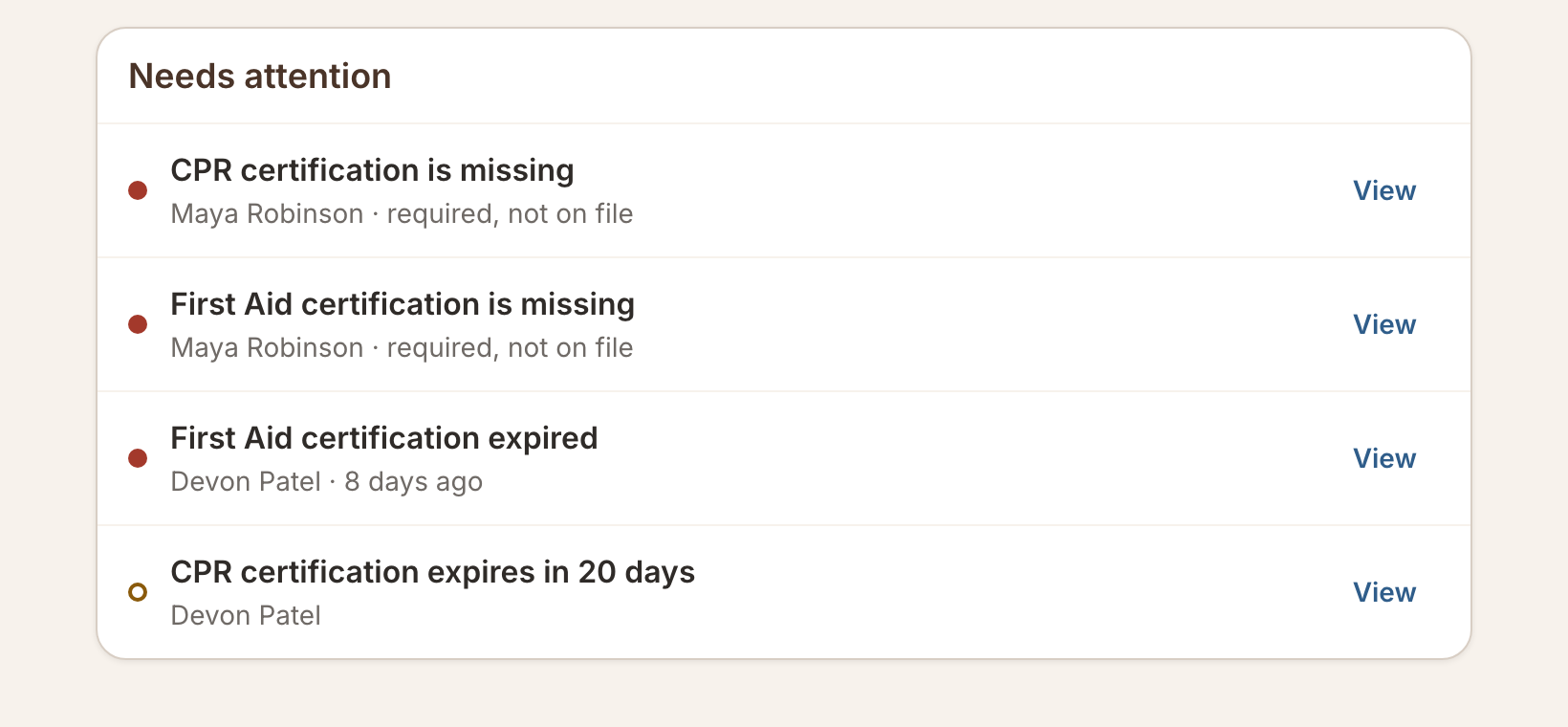 Missing and expired certifications show with a solid red dot. Expiring ones get an amber ring.
Each item names the certification and the person, for example "CPR certification expires in 20 days." The View link takes you to the Certifications page.
Reports. The Certifications tab in Reports turns the same data into totals.
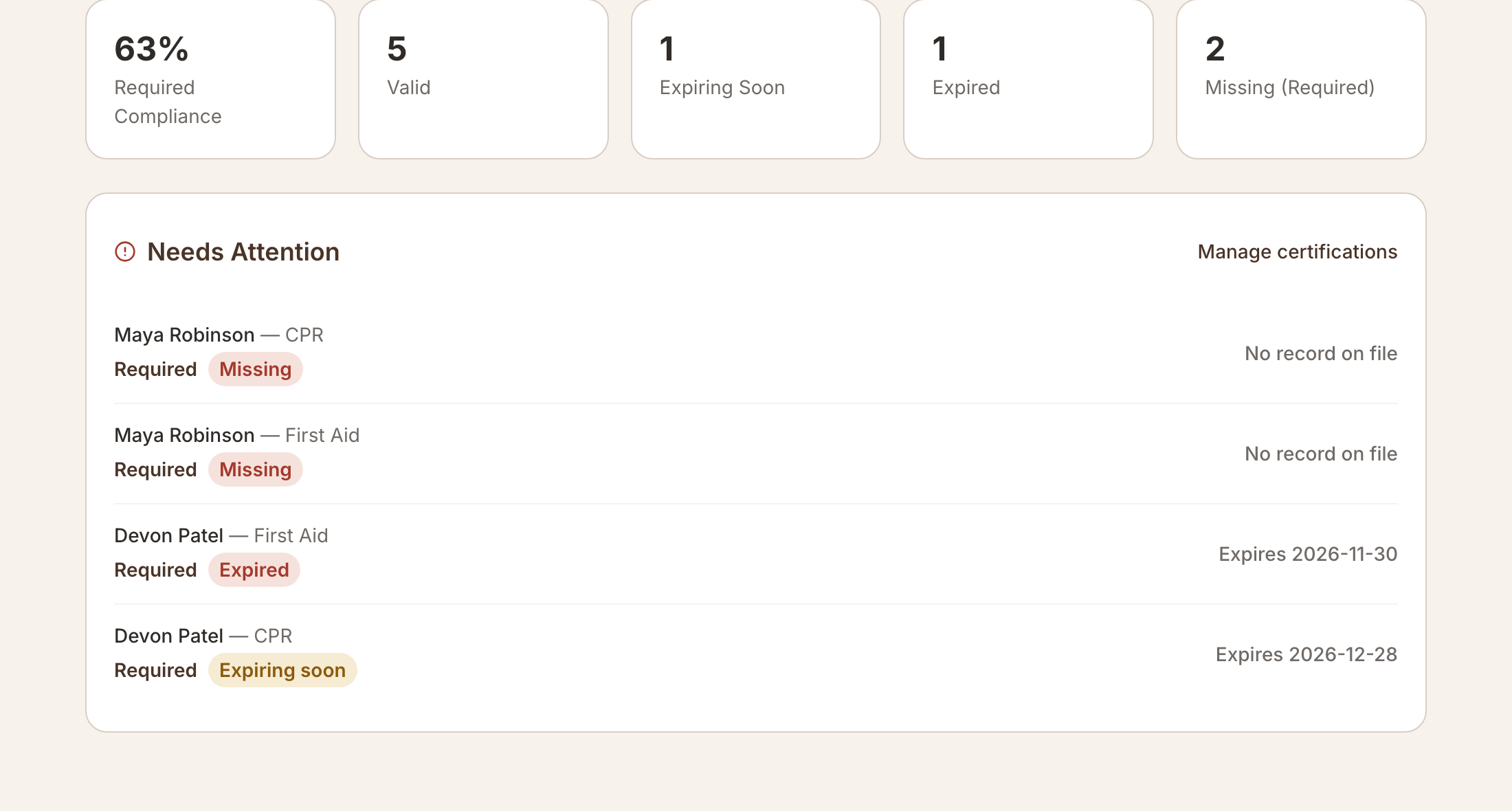 Click any total to filter the list below it. Click it again to clear the filter.
Required Compliance is the share of required, non-exempt rows that are valid or expiring soon. The cards count valid, expiring, expired, and missing-required records, and the Needs Attention list below sorts missing first, then expired, then expiring. Reports are open to owners, directors, and managers, and Pro centers can also export the certification record as a PDF, either for everyone or for chosen staff members. That is handy when someone asks to see a specific person's file.
A ten-minute routine that keeps it honest
A tracker is only as good as the habit around it. A simple routine works for most centers:
- When someone is hired, add their name to your staff list and open the Certifications tab. Every required type will already show as Missing for them, which is your to-do list for their first weeks.
- When a card or certificate arrives, use Fill in and enter the expiration date. Do it the day it arrives, while the paper is in your hand.
- Once a week, glance at the Needs attention list on the dashboard. Anything with an amber ring is a class to book. Anything solid red is a gap to close now.
- Before an inspection or a renewal visit, open the Certifications tab in Reports, check the Required Compliance number, and export the PDF if you want a file to hand over.
None of that needs a spreadsheet, a reminder app, or a binder tab. The point is not to make compliance exciting. It is to make a gap hard to miss.
What this does not do
Some honest limits:
- It records what you enter. It does not verify a certificate with the issuing organization, and it does not read a photo of a card. You type the dates.
- It does not email staff when their certification is about to lapse. Warnings show for managers on the dashboard and in Reports.
- It does not know your state's rules. It will not tell you that a certain role needs a certain course. You set which types are required.
- Exemptions are per person, so a center with many exceptions will tick a lot of boxes.
Common questions
What is the best way to track CPR expiration at a daycare? Record an expiration date for each person, set a warning window long enough to book a class, and look at one list instead of individual cards. That is what the Certifications page does. Pick a warning window that fits your class schedule: 30 days is the default, and many centers lengthen it.
Can I track certifications other than CPR and First Aid? Yes. Owners and directors can add any type, such as food handler cards or mandated reporter training, and mark it required or optional.
Who can see and change certification records? Owners, directors, and managers can view and fill in records and mark exemptions. Only owners and directors can add types or change what is required. Staff members do not have access to the page.
Is this on every plan? Certification tracking is part of the Pro plan. See pricing.
Does this satisfy my state's licensing rules? We can't say, and we're not licensing attorneys. It gives you a dated, searchable record. Ask your licensing agency what documentation they expect.
Start your 14-day free trial. No charge until the trial ends.
Related reading:
- CPR and First Aid Certifications: A No-Surprise Tracking Checklist
- Help Center: Setting Up Required Staff Certifications
- Help Center: Understanding Certification Status
- Help Center: Certification Exemptions
- Childcare staff certification tracking, defined
- What a Daycare Licensing Inspector Actually Asks to See