
November 17, 2026 · Features
New Hire Onboarding Tracker for Childcare: 30/60/90 Days
A new hire onboarding tracker for childcare is a list of checkpoints, each tied to a person's start date, with an owner, a due date, and a status that tells you what is on track and what slipped. In Childcare Owl, that is the Staff Onboarding page. You define the milestones once (a week-one walkthrough, a 30-day check-in, a 60-day check-in, a 90-day review), enter each new hire's start date, and the app works out every due date and flags the ones that go overdue.
Our post on why the 30/60/90-day check-ins matter makes the argument for doing them. This one shows what the tracker looks like and how it behaves, so you can judge whether it would fit how your center already works.
The problem it solves
At most centers, the first day is organized and the next 90 are not. The director means to check in at 30 days, then a classroom fills up, a teacher calls out, and it is day 47. Nobody forgot on purpose. There was simply no list that said Maya's 30-day check-in was due on the 25th, owned by her manager, and still open.
That is the whole job here: turn good intentions into dated, owned, visible items. Which checkpoints you need, and whether your state requires any particular orientation or training for new staff, is your call and your licensing agency's. We're not licensing attorneys, so check your state's rules for anything mandatory.
Step 1: Add the milestones
Open the Milestone Settings tab. The app does not preload a template, so the list starts empty and you build it. Adding a milestone takes four inputs.
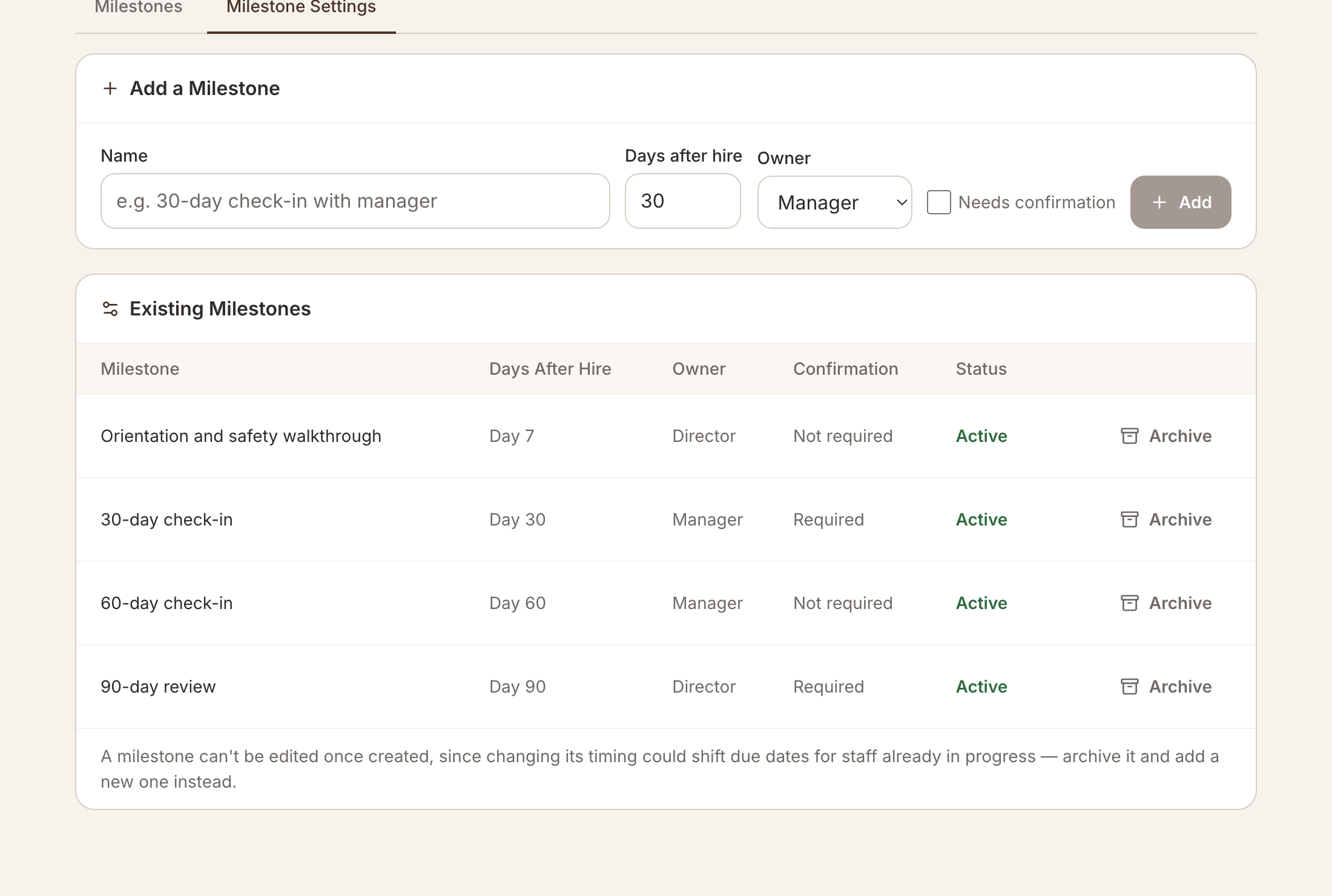 A milestone is a name, a day count after hire, an owner role, and an optional confirmation step.
- Name. For example "30-day check-in with manager."
- Days after hire. A number from 0 to 365. The due date for each person is their hire date plus this number.
- Owner. Owner, Director, or Manager. This labels who is responsible for the checkpoint and shows in the table.
- Needs confirmation. Tick this when a second person should sign off that the checkpoint really happened. More on that below.
Two limits are built in on purpose. A milestone cannot be edited after you create it, because changing its timing could shift the due dates for people already partway through. To change one, archive it and add a new one. Archived milestones stop appearing for new tracking but stay in the list, and you can restore them. Only owners and directors see this tab.
Step 2: Give each new hire a start date
Milestones need a hire date to compute anything. Staff who have none are collected in a banner at the top of the Milestones tab, with a date field and a Save button on each line.
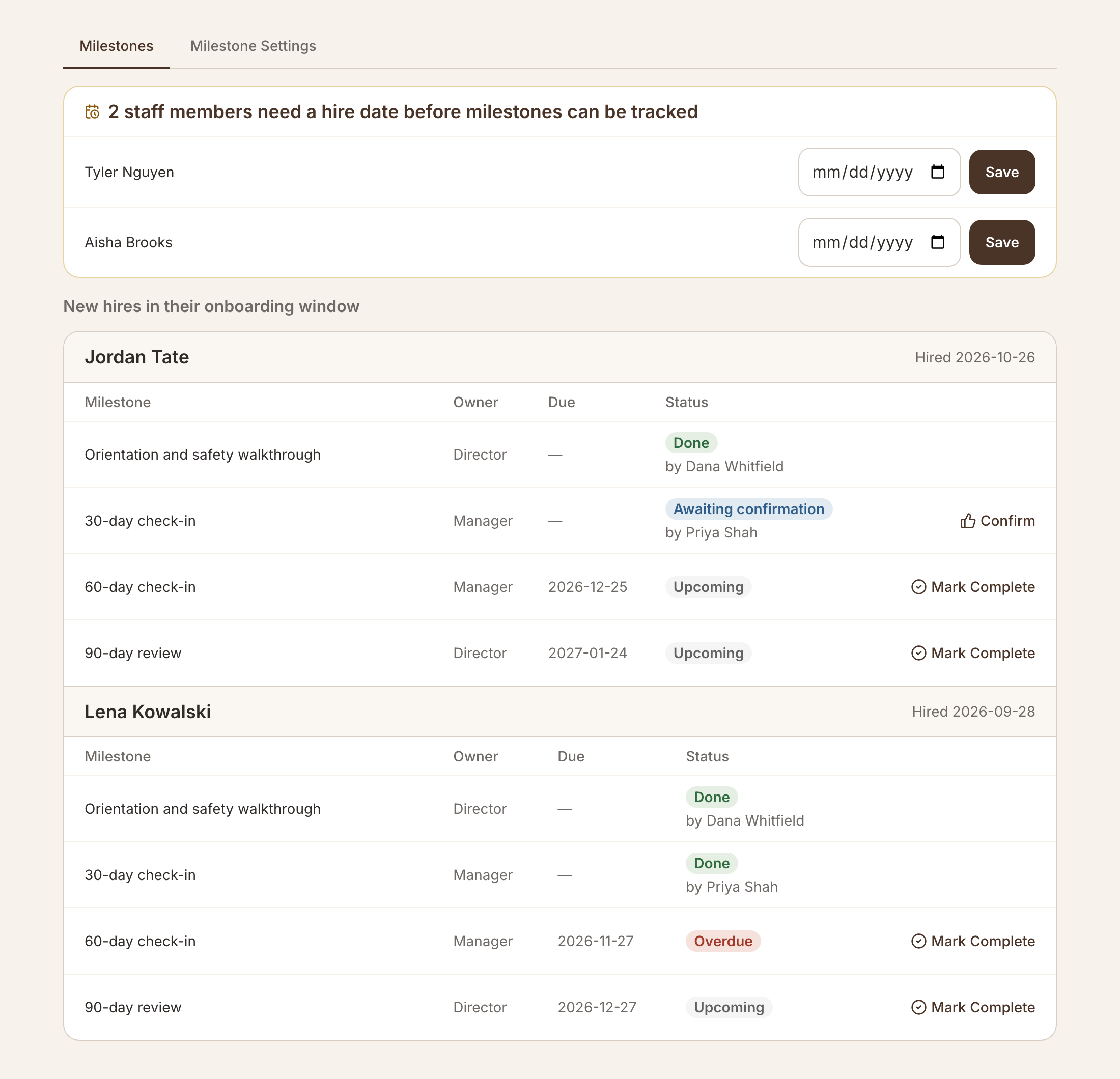 People without a hire date are listed at the top. Everyone else gets a table of milestones with due dates.
Once a hire date is saved, that person appears in the main list, "New hires in their onboarding window." A person shows up from their hire date until a month after your last milestone comes due, then drops off the list. A hire date in the future does not appear until that day arrives. The hire date is the same one Training Hours uses for its new-hire rules, so you only enter it once.
Step 3: Read the status of each milestone
Each new hire gets a block with their hire date and one row per milestone: the milestone, its owner, the due date, and a status.
- Upcoming. More than a week away.
- Due soon. Due within the next 7 days.
- Overdue. The due date passed and it is not done.
- Awaiting confirmation. Marked complete, but it needs a second person's confirmation.
- Done. Completed, and confirmed if confirmation was required. The row shows who did it.
The Owner column is a label, not a lock. Anyone with manager access or higher can mark any milestone complete. The label helps people see whose checkpoint it is, but it does not stop a director from covering for a busy manager.
Step 4: Mark a milestone complete
Click Mark Complete on a row and a short dialog asks for optional notes.
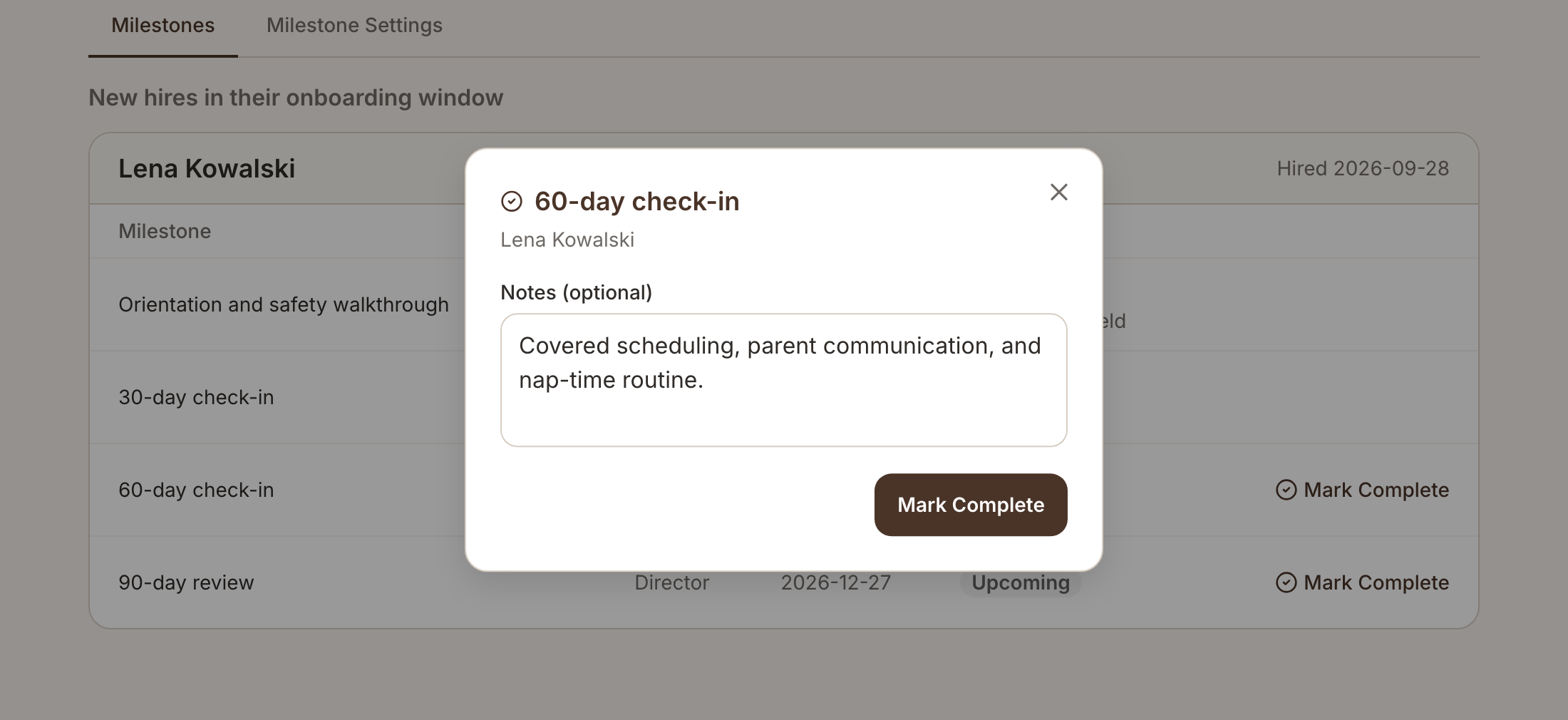 A few words of notes turn a checkbox into a record of what was actually discussed.
Save, and the status changes to Done with the name of the person who completed it. If the milestone needs confirmation, it moves to Awaiting confirmation instead, and a Confirm button appears. The idea is a second set of eyes: the manager runs the 30-day conversation, and the director confirms it happened. Confirming also needs manager access or higher.
Marking milestones complete, confirming them, and entering hire dates are open to owners, directors, and managers. Staff members do not see the Staff Onboarding page. Like Certifications, the page is part of the Pro plan; on Starter you see an upgrade prompt.
Where the results show up
The dashboard. For owners, directors, and managers on Pro, onboarding items join the Needs attention list on the dashboard.
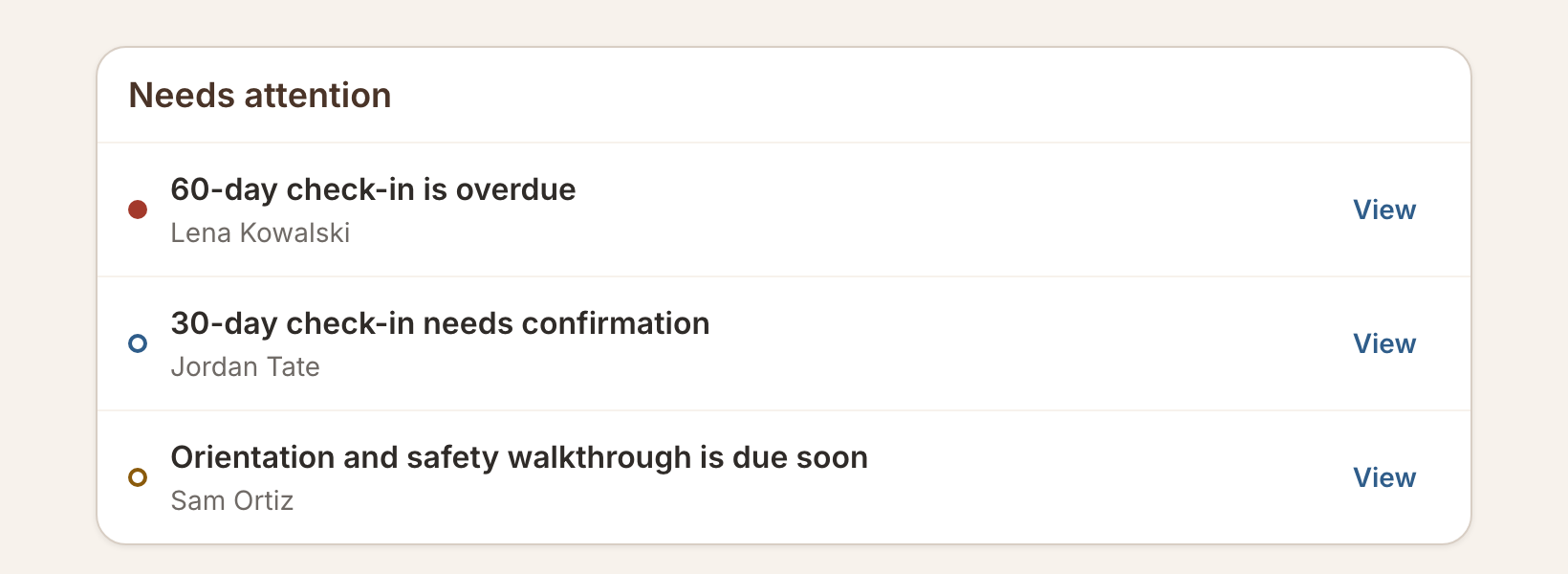 Overdue is a solid red dot, waiting on someone is a blue ring, and due soon is an amber ring.
Overdue milestones are ranked as urgent, milestones waiting on a confirmation show as waiting on someone, and due-soon ones show as warnings. Upcoming milestones stay off the dashboard until they are within a week, so it only shows what needs a decision today.
Reports. The Onboarding tab in Reports adds totals and a filterable list.
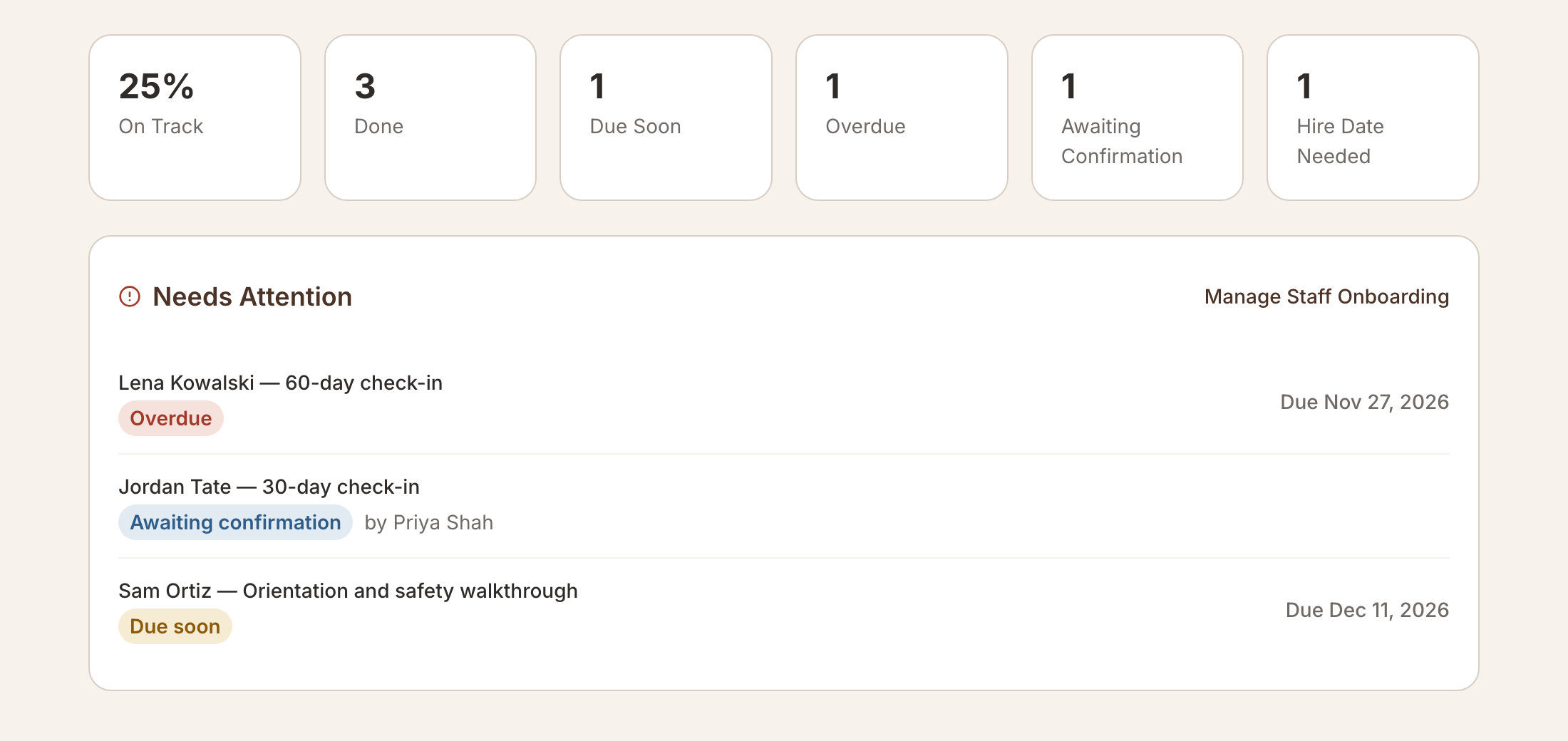 Click a card to filter the list. The default view is everything that needs attention.
The cards count done, due soon, overdue, awaiting confirmation, and staff missing a hire date. One thing to read carefully: On Track is the percentage of milestones marked done, out of all milestones for people currently in the window. A center with several recent hires will see a low number simply because most of their milestones are still upcoming. It rises as people move through their first 90 days. Reports are open to owners, directors, and managers, and Pro centers can export onboarding records as a PDF for everyone or for selected staff.
A simple way to run it
You do not need to set up everything on day one. A workable rollout looks like this:
- Start with three milestones. For example, a week-one walkthrough, a 30-day check-in, and a 90-day review. You can add a 60-day check-in later.
- Turn on confirmation only where it earns its keep. A confirmation step adds a second person to the process. Use it for the checkpoint you most worry about, such as the 90-day review, and leave the rest as one-person tasks.
- Put the hire date in the day someone starts. Everything else follows from it.
- Look at the dashboard on Mondays. Overdue and due-soon items sit with the rest of your needs-attention list, so there is no separate screen to remember.
Over time, the Reports tab shows whether check-ins are actually happening, which is a better conversation to have with your leadership team than a feeling that things are going fine.
What this does not do
- It does not ship with a standard checklist of what to cover. You write the milestones.
- It tracks check-ins and checkpoints, not documents. It will not hold a signed I-9 or an offer letter.
- It does not remind the new hire or the manager by email. The reminders are the dashboard and Reports.
- It has no per-person customization of milestones. Everyone in the window gets the same list, so a center with different tracks for lead teachers and aides would need to decide how to handle that.
Common questions
What should a 30/60/90 day check-in cover at a daycare? That is up to you, and the tool does not dictate it. Many centers use day 30 for questions about the job so far, day 60 for feedback on classroom practice, and day 90 for a longer review. Use the notes field to record what was covered.
What is a good new hire checklist for a daycare? Start with the milestones you will actually keep. Three or four dated checkpoints that happen beat a long list that does not. Our free new hire onboarding checklist is a place to start.
Do I need Pro to use this? Yes, Staff Onboarding is part of the Pro plan. See pricing.
Who can mark a milestone complete? Owners, directors, and managers. Only owners and directors can create or archive milestones.
Start your 14-day free trial. No charge until the trial ends.
Related reading:
- Childcare Staff Onboarding Software: The 30/60/90-Day Check-Ins Most Centers Never Finish
- Help Center: Setting Up Onboarding Milestones
- Help Center: Completing an Onboarding Milestone
- Staff onboarding milestones, defined
- Free New Hire Onboarding Checklist Template
- Childcare Staff Training Hours, Explained